Resizing images online for free
Managing and resizing images for your website and social media can be difficult, especially if you’re not a photographer. Investing in complicated software like Photoshop or Lightroom is out of the question for some, so what are the alternatives?
In this article, I’ll provide a few free and easy-to-use solutions that everyone can benefit from!
Canva – Image Resizing
- On the menu bar above the editor, click Resize.
- Enter custom dimensions, or pick from the preset design size options. Hover your cursor over them to see their dimensions. You can select more than one size.
- To resize the current design, click Resize.
- To keep your current design unchanged and create a new resized version of it instead, click Copy & resize.
Make sure to select a new design size from the options, or to enter new dimensions (see screenshot below). Otherwise, the Resize and Copy & resize buttons will be grayed out.
BeFunky Image Resizer
BeFunky is an awesome free image-resizing tool that provides plenty of options. You can resize your photograph in terms of width, height, or through a percentage scale. For instance, if you know that the size of your photo should be 1200 pixels wide, simply type it into the “Width” box and BeFunky will automatically adjust the height to maintain its shape. To manually select both width and height, just remove the check from the “Lock Aspect Ratio” selection. Be careful though, as changing the ratio could reduce picture quality.
You can enjoy basic photo resizing and editing for free on this platform, however more advanced features like filters, touch-ups, frames & text are available with a premium subscription to BeFunky!

B.I.R.M.E – Bulk Image Resizer
Don’t waste your time resizing images one at a time! B.I.R.M.E stands for “Batch Image Resizing Made Easy,” and it can help you quickly resize multiple photos with the click of a button. Plus, you have the ability to add a border to each photo – just select how many pixels thick you want it to be!
And with B.I.R.M.E.’s preview feature, you’ll get an accurate visual representation before committing to the changes so that your editing process is faster and stress-free!

Social Image Resizer Tool
The Social Image Resizer Tool provides an easy solution for all your social media image needs. With a simple upload of your photo, you can quickly access the dropdown menu to select from various options including Facebook Cover Photos, LinkedIn and Twitter profile images, Pinterest and Instagram thumbnails, YouTube channel art, or customized video thumbnails. Plus many more options!

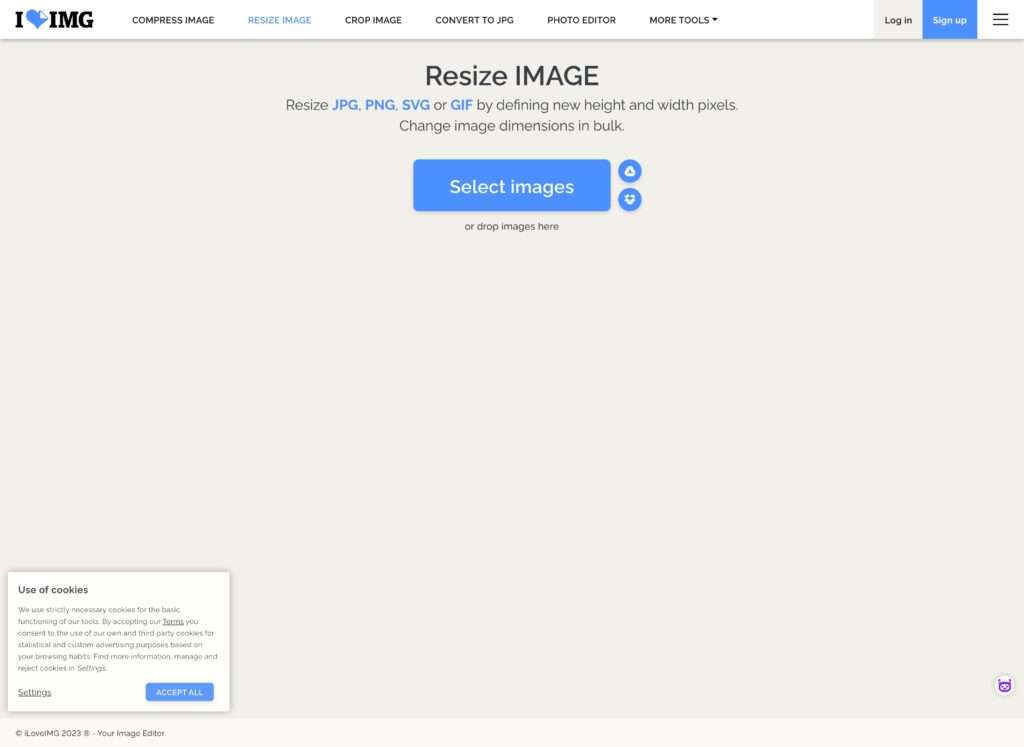
I love IMG
If you’re looking for a straightforward way to resize multiple images, I Love IMG is the perfect choice. Upload your images in one go, then select the Pixels or Percentage option to quickly and easily adjust their size. The Pixels option also includes a convenient “Do Not Enlarge If Smaller” checkbox – great if you want all photos to be 800 pixels wide but some are already smaller than that; it stops them from becoming blurred and keeps the quality of your website’s visuals top-notch!
conclusion
It’s easy to underestimate the importance of having an image that is the perfect size and quality. A great photo can give potential customers a remarkable first impression of your business – and in some cases, it may even make or break their decision to stay on your website.
Thankfully, there are plenty of tools available online which can help you create beautiful images without breaking the bank. Whether you’re completely new to this area, or have experience with custom settings using Photoshop, you’ll be able to find a resizing solution that fits your needs.